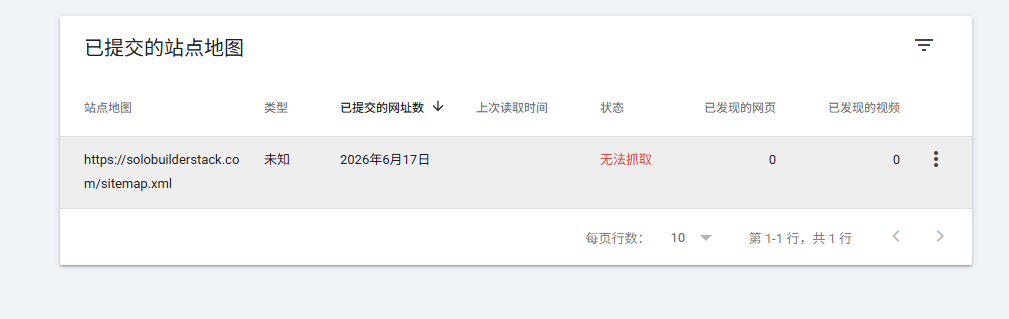
This guide is for one narrow failure state: Search Console says Couldn't fetch for sitemap.xml, even though the Cloudflare Pages site is already deployed.
Fix Search Console Couldn't Fetch for a Cloudflare Pages Sitemap
A field-tested checklist for fixing Google Search Console Couldn't fetch on a Cloudflare Pages sitemap, with live URL, redirect, cache, and custom-domain checks.
Updated: 2026-07-31
Google's Sitemaps report treats Couldn't fetch as a retrieval problem first, not proof that the site has a content-quality problem.
For Cloudflare Pages, the fastest checks are the live sitemap URL, production-domain canonical URLs, custom-domain status, redirects, and Cloudflare cache state.
In the 2026-07-31 Search Console export for this site, this guide had 212 impressions and 1 click, making sitemap troubleshooting the first validated support topic.
Recommended workflow
- Open the exact sitemap URL, such as https://solobuilderstack.com/sitemap.xml, and confirm it returns XML on the production domain.
- Check the sitemap status with a command-line HTTP request so redirects, status codes, and content type are visible.
- Confirm the sitemap only contains canonical production URLs, not pages.dev, localhost, example.com, or www URLs if the apex domain is canonical.
- Verify that Cloudflare Pages custom domains are active and SSL is enabled for both apex and www hostnames.
- Check that pages.dev and www redirects preserve the path so /sitemap.xml does not break.
- Purge the sitemap URL from Cloudflare cache if the live file was recently changed.
- Resubmit the sitemap only after the live checks pass, then wait before changing page titles or site structure.
1. Treat Couldn't fetch as a retrieval problem first
Google's Search Console Sitemaps report explains that a top-level Couldn't fetch status means Google could not retrieve the sitemap file itself. That does not automatically mean the pages are low quality, nor does it mean every URL in the sitemap is bad.
For a new Cloudflare Pages site, this distinction matters. A sitemap can be temporarily unavailable because the wrong URL was submitted, redirects are inconsistent, DNS or SSL is still settling, cache is stale, or the sitemap file still contains staging URLs. Fix the retrieval path before changing article content.
- Do not rewrite articles because the sitemap could not be fetched.
- Do not submit multiple sitemap variants at once.
- Do not assume success or failure from the Search Console screen alone; test the live sitemap URL first.
2. Check the exact sitemap URL outside Search Console
Start with the submitted URL. For this site, the correct sitemap is https://solobuilderstack.com/sitemap.xml. The URL should load directly, return a 200 response, and show XML that contains production URLs.
A browser check is useful, but a command-line check is better because it shows whether the URL is returning 200, 301, 302, 403, 404, or a cached response. If the sitemap opens only after a redirect chain, make sure the final URL still matches the production canonical domain and still ends at sitemap.xml.
- Check https://example.com/sitemap.xml, not the homepage URL.
- If the site uses an apex canonical host, do not submit the www sitemap unless it is the real canonical host.
- If the file returns HTML instead of XML, fix the static build or route before resubmitting.
3. Inspect the URLs inside sitemap.xml
A sitemap can be reachable but still misleading. Open the XML and inspect the loc entries. They should use the final HTTPS production domain and should not point to Cloudflare's temporary pages.dev domain, localhost, example.com, or an old staging host.
In this project, the sitemap is generated from reviewed tools, comparison pages, and guides. Thin tool profiles stay out of the sitemap until they have source checks, update dates, and useful evidence.
- Every loc entry should use one canonical host.
- Do not include noindex pages in the sitemap.
- Do not include duplicate http, https, www, and non-www variants for the same page.
4. Confirm Cloudflare Pages custom-domain status
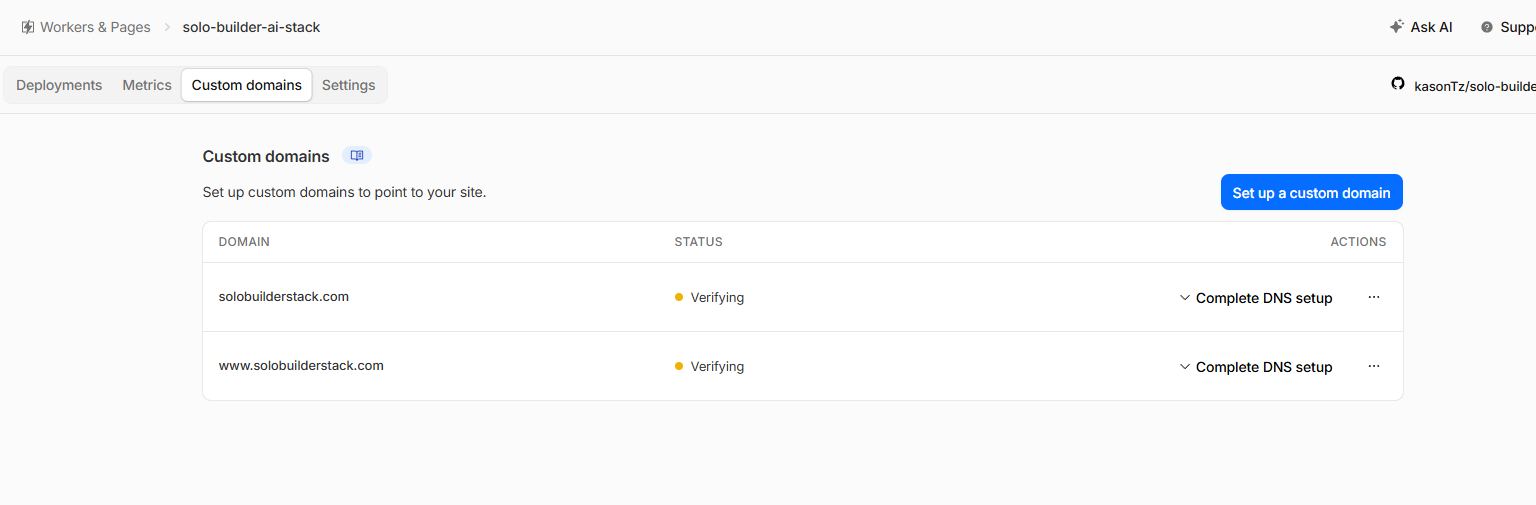
Cloudflare's Pages custom-domain documentation says the custom hostname must be attached to the Pages project. For this site, both solobuilderstack.com and www.solobuilderstack.com were added under the Pages project's Custom domains tab.
If the custom domain is still verifying, pending SSL, or attached to the wrong project, Search Console data can become confusing. Wait until Cloudflare shows the hostname as active before treating the sitemap result as meaningful.
- The apex domain should serve the production site.
- The www domain should either serve the site or redirect cleanly to the canonical host.
- SSL should be active before Search Console is expected to fetch consistently.
5. Make sure redirects preserve /sitemap.xml
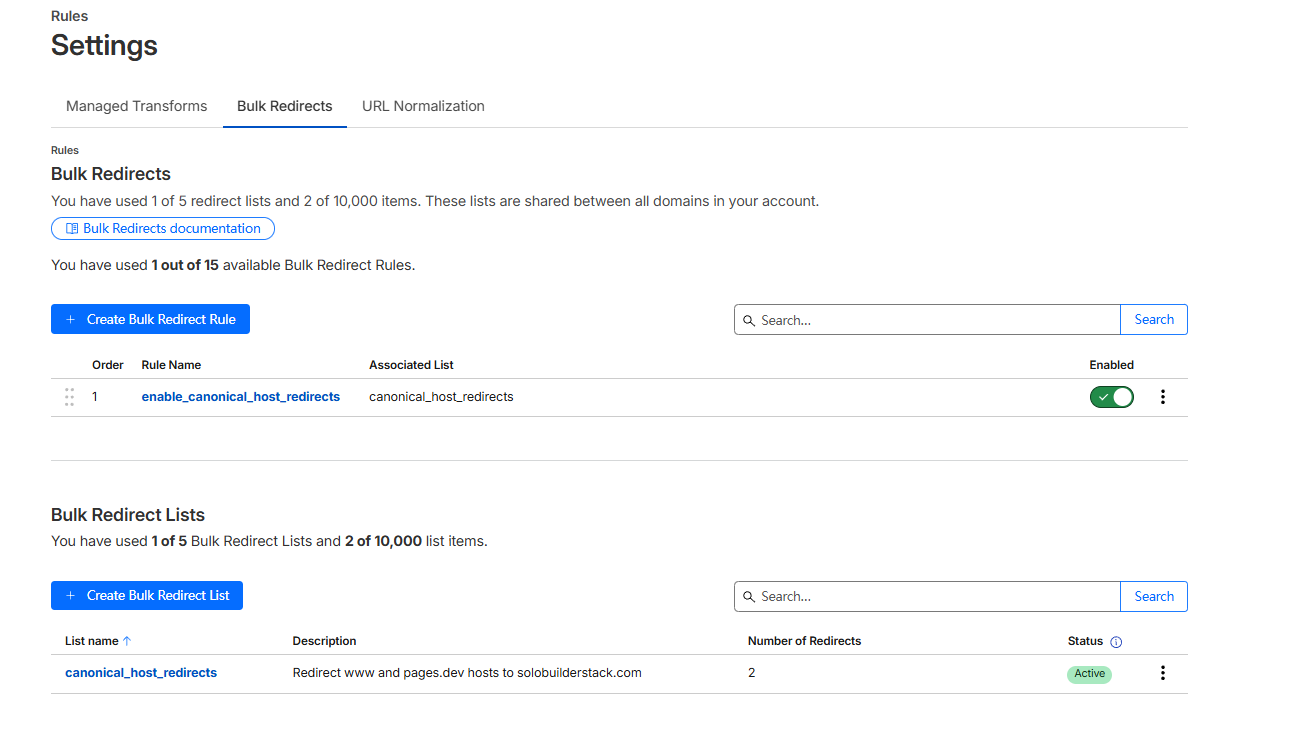
Cloudflare's Pages documentation recommends Bulk Redirects when redirecting a pages.dev deployment to a custom domain. That is important because the temporary pages.dev host can otherwise stay accessible and compete with the production domain.
The redirect should preserve the path suffix. If https://www.example.com/sitemap.xml or https://project.pages.dev/sitemap.xml redirects only to the homepage, Google may not reach the sitemap file you intended.
- Redirect www to the canonical host with a 301.
- Redirect the pages.dev host to the canonical host with a 301.
- Preserve query strings and path suffixes unless there is a specific reason not to.
- Test /sitemap.xml through each duplicate host after changing redirect rules.
6. Purge the sitemap URL if the file changed recently
Cloudflare's cache documentation recommends purging by URL when a specific file needs to refresh. For a static site, sitemap.xml can change after new pages are generated, so a stale cached file can make debugging harder.
Do not purge everything as a first move. For a small static site, purging the exact sitemap URL is usually enough. Then reload the URL and confirm the visible XML matches the latest deployed sitemap.
- Purge https://solobuilderstack.com/sitemap.xml after a sitemap-related deployment if the old file still appears.
- Check the sitemap again after purging.
- Only resubmit in Search Console after the live file is correct.
7. Resubmit once, then wait for processing
After the live URL returns a clean sitemap, resubmit it in Search Console and wait. Search Console reporting can lag behind the real site state, especially for new domains. A temporary fetch state should not trigger repeated sitemap submissions every few minutes.
For solobuilderstack.com, the more useful action after sitemap success was not technical tinkering. It was adding better source-backed content and recording Search Console performance data weekly.
- If the live sitemap is correct, wait before making unrelated changes.
- Use URL Inspection for one important page if you need a page-level check.
- Record the sitemap status and date in the internal Search Console log.
8. What the current Search Console data suggests
The 2026-07-31 export changed how this page should be treated. It is no longer only an internal troubleshooting note. It had 212 impressions and 1 click, which makes it the first support guide with both meaningful visibility and a confirmed visit.
That does not mean the page should be turned into an ad page. The better next improvement is search-intent alignment: make the title, first paragraph, and checklist answer the exact problem a beginner has when Search Console reports Couldn't fetch for a Cloudflare Pages sitemap.
- Keep the page focused on the sitemap retrieval problem.
- Link from broader Search Console guides to this page when sitemap fetching is mentioned.
- Watch queries such as couldn't fetch sitemap, Cloudflare Pages sitemap, and Search Console sitemap fetch in the next export.
Common mistakes to avoid
Do not submit the homepage URL as a sitemap.
Do not submit a pages.dev sitemap for a site that should be measured on a custom domain.
Do not include localhost, example.com, staging, or noindex URLs in sitemap.xml.
Do not change content strategy because of one temporary sitemap fetch state.
Do not expose Search Console account emails, DNS verification records, or Cloudflare account identifiers in screenshots.
Primary sources
- Search Console Sitemaps report
- Google build and submit a sitemap
- Cloudflare Pages custom domains
- Cloudflare redirect pages.dev to a custom domain
- Cloudflare Pages redirects
- Cloudflare purge cache
- Search Console URL Inspection tool
Related setup guides
Connect Cloudflare Pages to Google Search Console
A field-tested workflow for connecting a Cloudflare Pages site to Google Search Console, submitting a sitemap, checking URL Inspection, and reading the first performance signals.
Launch an AI Tool Directory with Cloudflare Pages, Name.com, and Search Console
A field-tested setup log for buying a domain, deploying a static AI tool directory, adding canonical redirects, and submitting a sitemap to Google Search Console.
Cloudflare Nameservers for a Name.com Domain
How to find Cloudflare nameservers, replace Name.com default nameservers, handle DNSSEC, wait for propagation, and avoid breaking a Cloudflare Pages site.
What to Do After the First 50 Google Search Console Impressions
A field-tested checklist for a new AI tool directory after Search Console crosses 50 impressions but still has zero clicks.
Tools to inspect first
Cloudflare Pages
Deploy static builds, preview branches, and edge functions.
Google Search Console
Submit sitemaps, inspect indexing, monitor queries, and track search clicks.
Astro
Build fast static pages from content collections and deploy to a CDN.
Next.js
Build SEO pages, app routes, API endpoints, and richer web products.