This guide is based on the solobuilderstack.com setup: Cloudflare Pages, a custom domain, canonical redirects, and Search Console sitemap submission.
Connect Cloudflare Pages to Google Search Console
A field-tested workflow for connecting a Cloudflare Pages site to Google Search Console, submitting a sitemap, checking URL Inspection, and reading the first performance signals.
Updated: 2026-06-22
The goal is not to force Google to rank a new site. The goal is to make the site technically clean enough for Google to discover, inspect, and measure it.
The current Search Console export showed 19 impressions and 0 clicks, with the launch guide as the strongest early page. That is an early discovery signal, not a monetization signal.
Recommended workflow
- Make sure the Cloudflare Pages deployment works on the custom domain before opening Search Console.
- Attach both apex and www hostnames in Cloudflare Pages and confirm SSL is active.
- Redirect duplicate hosts, including the temporary pages.dev host, to one canonical domain.
- Verify the domain property in Google Search Console using DNS or Cloudflare-assisted verification.
- Submit the production sitemap only after it returns 200 and contains canonical production URLs.
- Use URL Inspection and the Sitemaps report to separate technical issues from normal early-stage waiting.
- Record impressions and queries weekly before changing titles or adding monetization.
1. Cloudflare Pages to Google Search Console: what must be true first
A Cloudflare Pages site should be stable before it is submitted to Google Search Console. For this project, that meant the custom domain returned 200, the www host redirected to the apex domain, and the temporary pages.dev host no longer competed with the production domain.
This order matters because Search Console data is only useful when it points at the same canonical site users should visit. If the custom domain, pages.dev URL, and www host all stay live as separate versions, early data becomes harder to interpret.
- The homepage should return 200 on the final HTTPS domain.
- The HTTP version should redirect to HTTPS.
- The www and pages.dev versions should redirect to the canonical domain.
- The sitemap should use only production canonical URLs.
2. Add the custom domain in Cloudflare Pages
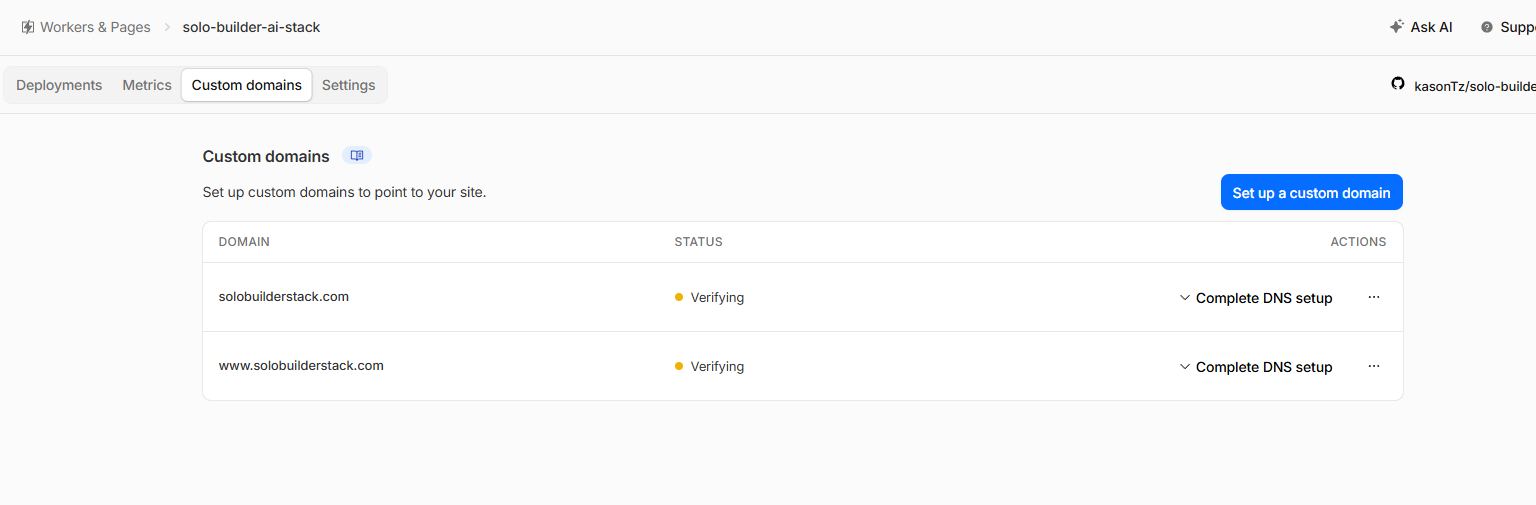
Cloudflare's Pages documentation says custom domains are added from the Workers & Pages project under Custom domains. In this project, both solobuilderstack.com and www.solobuilderstack.com were attached to the Pages project.
The practical beginner mistake is to edit random DNS records before the Pages project knows about the hostname. Let the Pages custom-domain workflow create or confirm the records, then verify the DNS and SSL state from the custom-domain screen.
- Open the Cloudflare Pages project.
- Use Custom domains to add the apex domain.
- Repeat for the www hostname if you want it to redirect cleanly.
- Wait until both hostnames show active SSL before treating the setup as done.
3. Redirect duplicate hosts before submitting the sitemap
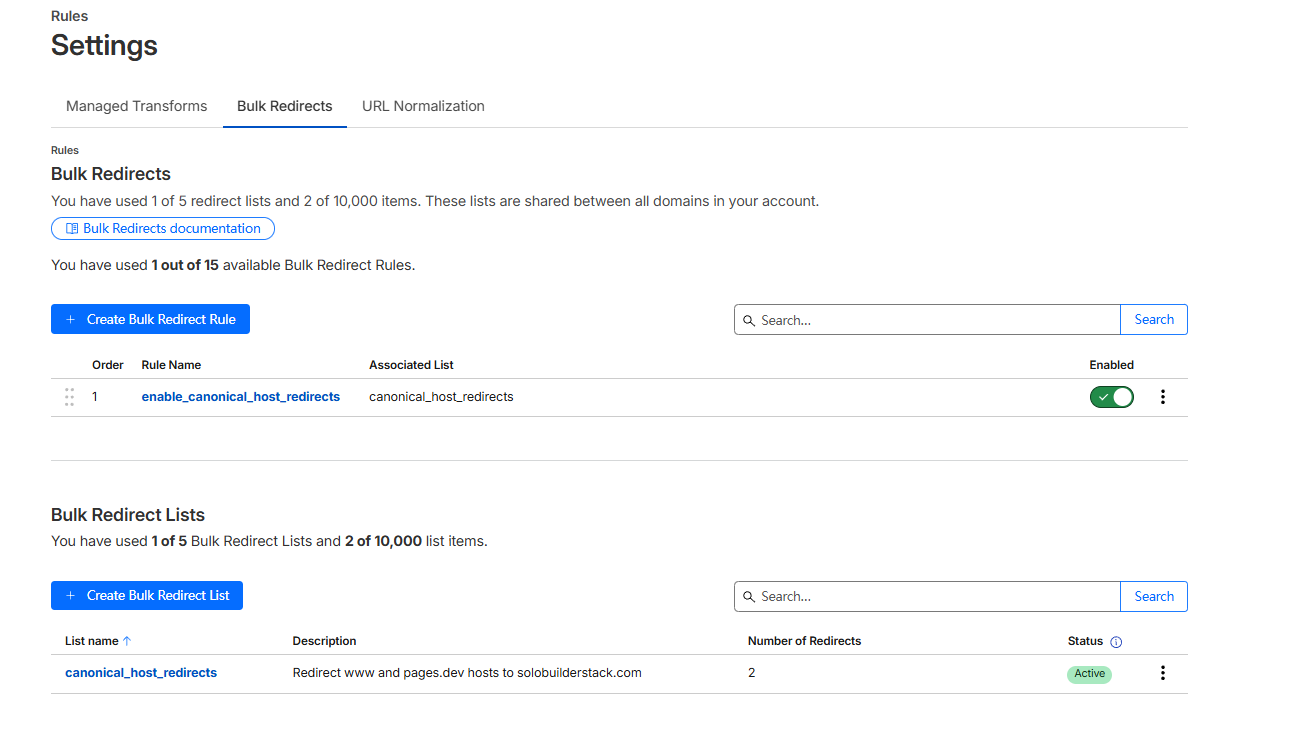
Cloudflare's documentation for redirecting pages.dev to a custom domain recommends Bulk Redirects for the temporary Pages subdomain. This project uses Bulk Redirects so the pages.dev version and www version point to the canonical host.
This step does not create traffic, but it reduces ambiguity. It also helps keep Search Console focused on the production domain instead of splitting early impressions across duplicate hostnames.
- Redirect the www hostname to the apex hostname.
- Redirect the pages.dev hostname to the apex hostname.
- Preserve query strings and path suffixes so old paths still land on the matching production path.
- Test the redirects in a browser or shell before Search Console submission.
4. Verify the Search Console property
Google's Search Console ownership documentation says domain properties use the domain-name-provider method and may require a TXT record. When DNS is already on Cloudflare, the simplest path is usually DNS-based verification or the Cloudflare authorization flow shown inside Search Console.
The key rule is to verify the domain property, not only one URL prefix, when you want Search Console to cover http, https, www, and non-www versions under the same root domain. After verification, keep the DNS record or provider authorization in place unless you intentionally replace it with another verification method.
- Choose a domain property for the root domain.
- Use the DNS/provider verification method Search Console offers.
- Wait for verification to complete before submitting the sitemap.
- Do not remove verification records just because the first check succeeded.
5. Submit sitemap.xml only after it is clean
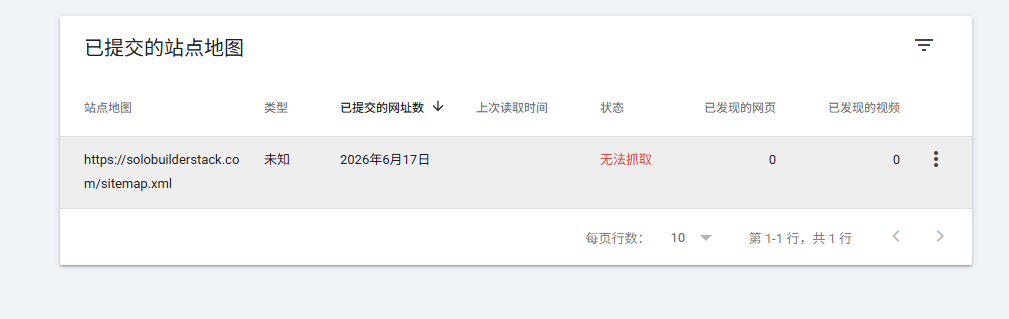
Google's sitemap documentation is explicit that sitemap submission is a hint, not a promise that Google will download the sitemap or use it for crawling. The Sitemaps report is still useful because it shows whether Google can fetch the file and whether there are processing errors.
For this project, the sitemap URL is https://solobuilderstack.com/sitemap.xml. It should only contain pages we are willing to have indexed: source-checked tool pages, comparison pages, and real guides. Thin tool pages remain noindex and stay out of the sitemap.
- Open the sitemap URL directly and confirm it returns 200.
- Confirm it does not contain pages.dev, localhost, or example.com URLs.
- Submit the sitemap in the Search Console Sitemaps report.
- Treat a successful sitemap status as measurement readiness, not proof of rankings.
6. Use URL Inspection for individual pages
Search Console's URL Inspection tool gives crawl, index, and serving information for a specific URL. Use it when a page matters enough to check individually, such as a new guide, a tool page that received impressions, or a page that should be in the sitemap but is not appearing in reports.
URL Inspection should not become a daily ritual for every page. For a small new site, inspect the homepage, sitemap, the main launch guide, and one newly published guide after deployment. Then wait for Search Console performance data to accumulate.
- Inspect the canonical HTTPS URL, not the redirected HTTP or www URL.
- Check whether the page can be fetched successfully.
- Use inspection results to find technical blockers such as noindex, blocked robots, or redirect mistakes.
- Do not confuse a technically valid page with a page that deserves to rank.
7. Read the first Search Console export carefully
The 2026-06-22 export for this site showed 19 impressions, 0 clicks, and five pages with impressions. The strongest early page was the real deployment guide, with 10 impressions. One query, cloudflare google search console, directly supports writing this focused guide.
That is enough to justify publishing a better Cloudflare + Search Console page. It is not enough to rewrite every title, add ads, or assume the site has found a profitable topic. The correct next step is more evidence-backed content in the same cluster.
- Keep a weekly Search Console log.
- Look for repeated queries, not one-off impressions.
- Prioritize pages with real setup evidence and clear user intent.
- Delay AdSense until the site has more original content and measurable demand.
Common mistakes to avoid
Do not submit the pages.dev URL as the main production property.
Do not submit a sitemap that contains staging, localhost, example, or duplicate-host URLs.
Do not assume sitemap success means indexing or ranking will happen.
Do not change page titles based on a single impression.
Do not publish Search Console screenshots that expose account email addresses, verification tokens, API identifiers, or private analytics details.
Primary sources
- Cloudflare Pages custom domains
- Cloudflare redirect pages.dev to a custom domain
- Google verify site ownership
- Google build and submit a sitemap
- Search Console Sitemaps report
- Search Console URL Inspection tool
- Search Console overview
Tools to inspect first
Cloudflare Pages
Deploy static builds, preview branches, and edge functions.
Google Search Console
Submit sitemaps, inspect indexing, monitor queries, and track search clicks.
Astro
Build fast static pages from content collections and deploy to a CDN.
Next.js
Build SEO pages, app routes, API endpoints, and richer web products.
Google AdSense
Earn from display ads after site approval and policy compliance.
Affiliate Programs
Earn commissions when readers buy tools through tracked links.